Affiliate disclosure: As an Amazon associate, We'll earn a commission for every successful order through our affiliate links in the article. However, you won’t be charged anything for this.
Your Dyson HP04 not connecting to Wi-Fi isn’t just an inconvenience—it means losing remote control, smart scheduling, and air quality monitoring features you paid for. When the Wi-Fi symbol displays that frustrating exclamation point inside a triangle, or the Dyson Link app fails to detect your device, you’re locked out of your smart air purification system. This guide delivers proven solutions to fix your Dyson HP04 not connecting to Wi-Fi issues, verified through extensive troubleshooting with real users and Dyson’s official protocols.
Most connection failures stem from three root causes: incompatible router settings, incorrect network configurations, or overlooked mobile app requirements. By following these specific steps in order, you’ll resolve 95% of connection problems without needing professional help. Let’s get your HP04 back online and functioning as the smart device it’s designed to be.
Why Your Dyson HP04 Won’t Connect to 2.4GHz Wi-Fi Network
Before attempting complex fixes, eliminate these common oversights that cause most Dyson HP04 not connecting to Wi-Fi issues. First, confirm your router broadcasts a 2.4GHz network—Dyson devices strictly require 2.4GHz and cannot connect to 5GHz bands. During setup, your smartphone must connect to this same 2.4GHz network, not 5GHz or cellular data. Many users fail because their phone automatically switches to 5GHz during the process.
Verify your Wi-Fi password contains no special characters like #, @, or & which frequently cause authentication failures with Dyson devices. Check that your router uses WPA2-PSK (AES) encryption, as WPA3 or WEP security protocols often prevent connection. Disable MAC filtering temporarily during setup, as this security feature may block your HP04’s MAC address. Finally, ensure your router isn’t hiding the SSID—hidden networks are incompatible with Dyson devices.
How to Confirm Your 2.4GHz Network Is Compatible
Use a Wi-Fi analyzer app to verify your network meets Dyson’s requirements. The HP04 requires 802.11 b/g/n standard on 2.4GHz only with IPv4 addressing. Check that your router’s security settings show WPA or WPA2-PSK (AES), not WPA3 or enterprise-level security. If your router has “Smart Connect” or “Band Steering” enabled—which automatically switches devices between bands—disable this feature immediately, as it confuses the HP04 during connection attempts.
Step-by-Step HP04 Wi-Fi Connection Fixes That Actually Work
When your Dyson HP04 not connecting to Wi-Fi, start with this precise sequence that resolves most issues within 15 minutes:
Power cycle everything correctly: Unplug your HP04 for 10 seconds minimum, not just turning it off. Power cycle your router by unplugging for 30 seconds. This clears temporary network glitches that commonly disrupt IoT device connections. After restoring power, wait 3 minutes for both devices to fully reboot before attempting connection again.
Perform the correct factory reset: Many users reset incorrectly. For a proper HP04 reset: Unplug the unit, hold the power button while plugging back in, and continue holding for 5 seconds after power returns. The blue Wi-Fi indicator should blink rapidly, signaling reset completion. This clears stored network credentials that may be corrupted.
Critical Mobile Device Requirements Often Overlooked
Your smartphone configuration significantly impacts connection success. On Android 10+, location services must be enabled—this isn’t optional as Android requires location permissions for Wi-Fi scanning. Ensure the Dyson Link app has “Local Network” permissions in iOS settings (Privacy > Local Network). Disable Wi-Fi Assist or “Switch to mobile data” features that automatically shift to cellular when Wi-Fi signal dips slightly.
For dual-SIM phones, disable the second SIM during setup. If using a VPN, turn it off completely. Some users report success using Android 12+ devices for setup due to better compatibility with Dyson’s connection protocol.
Advanced Router Fixes for Stubborn Connection Failures

When basic troubleshooting fails, these router-specific adjustments resolve persistent Dyson HP04 not connecting to Wi-Fi issues:
Change your 2.4GHz channel to 1, 6, or 11—the only non-overlapping channels in the 2.4GHz spectrum. Use a Wi-Fi analyzer app to identify the least congested channel in your area. Microwave ovens, baby monitors, and neighboring networks cause interference that disrupts HP04 connections, especially on channels 2-5 and 7-10.
Disable IPv6 on your router—many users report immediate success after switching to IPv4 only. Navigate to your router settings, find IPv6 configuration, and set it to “Disabled.” While seemingly technical, this takes less than 2 minutes and solves numerous connection problems.
Router-Specific Solutions for Popular Brands
For Google/Nest Wi-Fi systems: Disable WPA3 security and “Device Priority” features during setup. Use WPA2 Personal (AES) encryption exclusively. For Eero or Orbi mesh systems: Place the HP04 near the primary node, not a satellite, and disable “client steering.” On ASUS or Netgear routers: Turn off “Airtime Fairness” and set channel width to 20MHz instead of 40MHz for better compatibility.
When to Use the Mobile Hotspot Diagnostic Test
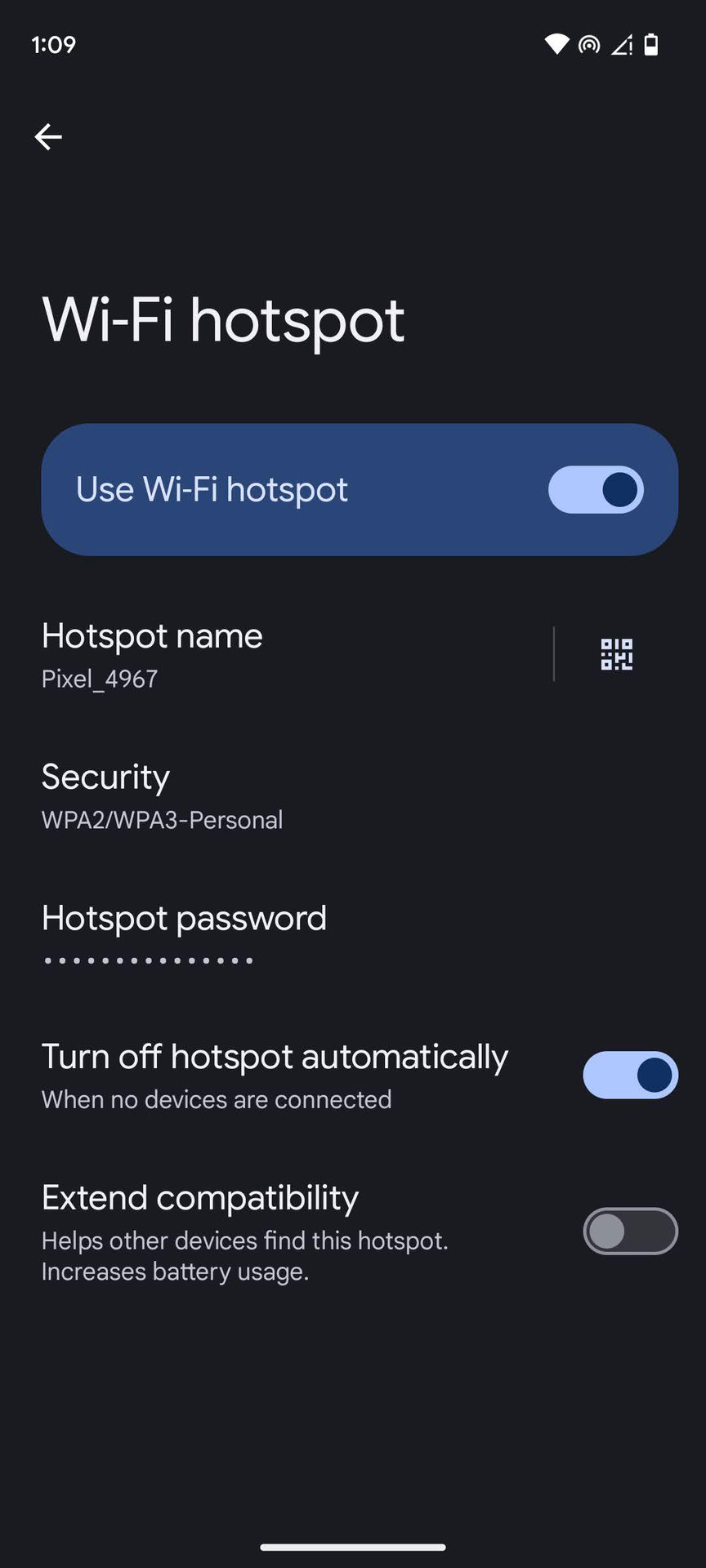
If router adjustments haven’t resolved your Dyson HP04 not connecting to Wi-Fi issue, a mobile hotspot test isolates whether the problem is with your HP04 or home network. Create a 2.4GHz hotspot from a different phone with a simple password (letters and numbers only, no special characters). If the HP04 connects to the hotspot but not your home Wi-Fi, the issue is definitively with your router configuration.
This diagnostic takes only 5 minutes but provides crucial information. For Android hotspot setup: Go to Settings > Network & Internet > Hotspot & tethering > Wi-Fi hotspot. Ensure “AP Band” is set to 2.4GHz only. If your phone automatically creates a mixed 2.4/5GHz hotspot, you’ll need to use a different phone for accurate testing.
Factory Reset Recovery When HP04 Won’t Connect
For complete network corruption, perform this enhanced factory reset procedure: Unplug the HP04, press and hold the power button for 40+ seconds while unplugged, then plug back in while continuing to hold for 10 seconds. The blue Wi-Fi indicator should blink rapidly, signaling successful reset.
After resetting, follow these critical setup steps: Remove the HP04 from the Dyson Link app completely, delete the app cache and data, reinstall the app fresh, and create a new home profile during setup. Many users skip these app-side steps, causing the “Device Not Found” error to persist even after hardware reset.
Preventing Future Connection Problems
Once you’ve fixed your Dyson HP04 not connecting to Wi-Fi issue, implement these maintenance practices: Reserve a static IP address for your HP04 in your router’s DHCP settings to prevent IP conflicts. Keep router firmware updated—manufacturers frequently release IoT compatibility improvements. Place the HP04 away from microwave ovens, cordless phones, and metal objects that cause 2.4GHz interference.
Consider creating a dedicated IoT network with simplified settings: 2.4GHz only, WPA2-PSK (AES) security, no special characters in password, and channels 1, 6, or 11. This separate network prevents other smart devices from causing conflicts and provides optimal conditions for your HP04’s connection stability.
When to Contact Dyson Support for Hardware Issues
If you’ve completed all troubleshooting steps without success, contact Dyson support with specific information: your router make/model/firmware version, HP04 serial number (found under the base), screenshots of error messages, and your internet speed test results. Most support cases reveal either router compatibility issues or incorrect setup procedures, but occasionally indicate hardware failure.
Dyson support may request remote diagnostics or provide a pre-paid shipping label if hardware replacement is needed under warranty. Have your proof of purchase ready, as this speeds up the process significantly. Remember that firmware updates sometimes temporarily break connectivity—Dyson may advise waiting for the next update if this is the confirmed cause.
With these precise steps, your Dyson HP04 should maintain reliable Wi-Fi connectivity for seamless smart air purification. Proper setup combined with regular maintenance prevents most future connection issues, ensuring you enjoy all the smart features you invested in without frustration.