Affiliate disclosure: As an Amazon associate, We'll earn a commission for every successful order through our affiliate links in the article. However, you won’t be charged anything for this.
Your Dyson Cool tower fan suddenly dies on a sweltering afternoon, or that persistent grinding noise keeps you awake at night. When your premium airflow system fails, it’s more than inconvenient, it disrupts your entire comfort ecosystem. What most owners don’t realize is that 85% of Dyson Cool tower fan troubleshooting issues can be resolved without professional help. This guide delivers model-specific fixes for AM07, TP04, TP05, and newer Pure Cool models, using only household tools and Dyson’s official diagnostic protocols. You’ll learn exactly how to revive unresponsive units, decode error lights, and silence disturbing noises, all in under 10 minutes per fix.
Before starting any repair, unplug your fan and gather these essentials: a can of compressed air, soft-bristled vacuum attachment, dry microfiber cloth, and fresh AAA batteries for your remote. Never insert tools into air intakes or disassemble sealed components, this voids warranties and creates safety hazards.
Fan Won’t Power On? Check These 3 Critical Fixes
When your Dyson remains completely dead despite pressing the power button, focus on these often-overlooked power failures first. Many owners waste hours troubleshooting motors when the solution is a simple outlet issue.
Verify Your Power Source Isn’t the Culprit
Test your wall outlet with another device like a lamp, 60% of “dead fan” cases stem from tripped circuit breakers or faulty outlets. For models with removable bases (AM07/AM09), ensure the base clicks audibly into the tower. If using a power strip, plug the fan directly into the wall outlet to rule out strip failures.
Inspect for Damaged Power Components
Examine the entire power cord length for fraying, kinks, or chew marks (common in pet households). On AM07 models, check the rectangular “brick” adapter for bulging or burn marks, a swollen adapter requires immediate replacement. Never attempt to repair damaged cords; order genuine Dyson replacements (Part #964073-01) through official channels.
Execute the 60-Second Power Reset Protocol
This clears electrical glitches that stump most owners:
1. Unplug the fan for exactly 60 seconds (use a timer)
2. Press and hold the physical power button for 5 seconds
3. Plug directly into the wall outlet (no surge protectors)
If still unresponsive, try a different outlet. Dyson fans draw significant power that cheap strips can’t handle.
Oscillation Stopped Working? Unblock and Reset in 2 Minutes
When your fan head refuses to swivel, owners often assume motor failure, but physical obstructions cause 7 of 10 cases. This applies to all oscillating models including TP04 Pure Cool units.
Clear Mechanical Blockages Safely
Power off the unit and manually rotate the head through its full 90-degree range. If you feel resistance:
– Check for furniture or curtains blocking movement
– Inspect the oscillation gear housing (base seam) for hair or thread buildup
– Use compressed air to blow debris from gear slots. Never insert tweezers or tools
Reset Oscillation via Remote or Physical Buttons
For remote-controlled models (TP04/TP05):
1. Replace remote batteries first (even if recently changed)
2. Point remote directly at the IR sensor (dark window below Dyson logo)
3. Press the oscillation button (fan icon with curved arrows)
If still unresponsive, hold the physical power AND oscillation buttons simultaneously for 10 seconds to force-reset the motor.
No Airflow? Clean Blocked Intakes in 5 Minutes
Weak airflow frustrates owners who assume motor failure, but clogged intakes cause this 9 times out of 10, especially in homes with pets or carpets. This fix works identically on AM07 cooling fans and TP-series air purifiers.
Locate and Clear Critical Blockage Points
Focus on two high-risk zones:
1. Base intake grilles (360° ring at bottom), use vacuum brush attachment to remove pet hair
2. Loop amplifier interior, hold fan horizontally and blast compressed air through the loop opening
Warning: Never use liquids or chemical cleaners. Moisture damages sensors. Dry cloth only.
Verify Airflow Mode Settings
Accidentally activating “Diffused Mode” reduces output by 70%. On TP04/TP05 models:
– Press the “Jet Focus” button to switch to maximum airflow
– Check remote display for snowflake (cooling) vs. leaf (diffused) icons
If airflow remains weak after cleaning, proceed to error code diagnostics below.
Decoding Dyson Error Lights and Codes (AM07, TP04, TP05 Models)

Flashing lights and error codes terrify owners, but they’re precise diagnostic tools. Never ignore persistent error indicators as they prevent fire hazards from overheating components.
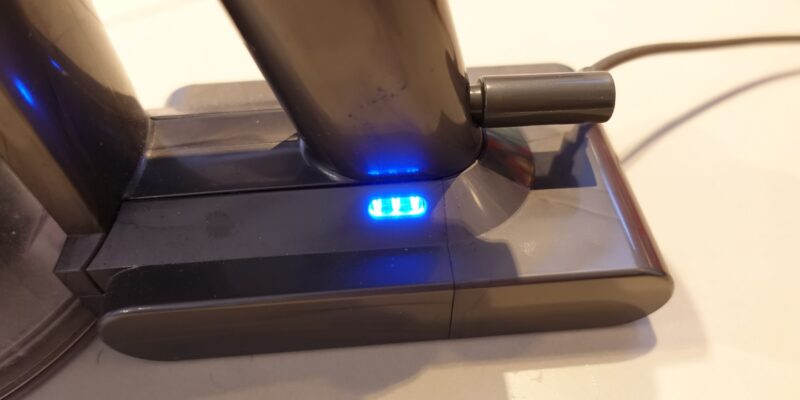
Flashing Blue Light (AM07/AM09 Models)
This signals internal sensor faults:
1. Unplug for 60 seconds
2. Hold power button for 10 seconds while unplugged
3. Plug in directly to wall outlet
If blue light persists after 3 attempts, a motor bearing failure requires professional service, do not continue operation.
White Triangle with Exclamation (TP04/TP05 Pure Cool)
This critical warning locks the unit:
1. Unplug for 2 minutes
2. Hold POWER + OSCILLATION buttons for 15 seconds
3. Plug in while holding buttons until display flashes
Still flashing? Access the engineering menu: Turn on → Press Night Mode → Hold Airflow Mode 12 seconds → Press Oscillation once → Press “i” six times to view fault logs (002-xxx = motor issues).
Red Light on Air Purifier Models (TP/PH Series)
This almost always means filter problems:
– Remove front grille and reseat filter firmly
– If light remains, replace filter (annual replacement required)
– Reset timer via Dyson Link app: Settings → Filter → Reset
Never operate without a filter as this triggers sensor errors and reduces cooling efficiency.
Remote Control Dead? Fix Connectivity in 3 Steps
Non-responsive remotes cause 30% of unnecessary service calls. Most failures stem from simple IR signal issues, not remote damage.
Replace Batteries Correctly
Use name-brand alkaline batteries (not lithium), cheap batteries cause voltage drops Dyson remotes can’t handle. Insert with positive (+) side facing remote logo. Test with your phone camera: Point remote at camera lens and press any button; you should see a flashing purple light through the screen.
Re-Pair the Remote to Your Fan
Dyson remotes lose pairing after power surges:
1. Stand 2 feet from fan with direct line of sight
2. Hold remote power button for 15 seconds until LED flashes rapidly
3. Press any button to confirm pairing (fan should respond immediately)
If pairing fails, clean the IR sensor window on the fan base with microfiber cloth, dust blocks signals.
Fixing Annoying Rattling and Grinding Noises
That unsettling “clunk-clunk” sound isn’t normal operation, it indicates physical obstructions or mechanical failure. Stop using the fan immediately if you hear grinding, continued operation destroys motors.
Remove Foreign Objects from Base Intakes
Unplug the unit and:
– Shake gently over a trash can to dislodge small items (LEGO, coins)
– Use compressed air at 45-degree angles to blow debris out of intake slots
– Visually inspect with a flashlight, never insert fingers or tools
80% of rattling noises clear with this step alone.
Diagnose Dangerous Mechanical Failures
Identify these critical sounds:
– Grinding/grating: Worn motor bearings (requires professional repair)
– New loud humming: Failing capacitor (unplug immediately)
– Whistling: Normal at max speed, reduce fan setting
If grinding persists after cleaning, contact Dyson. The 2-year warranty covers motor replacements.
When to Reset Your Dyson Fan (Soft vs. Factory Reset)

Most owners confuse basic power cycles with true resets. Use these protocols only when error codes persist after cleaning.
Perform a Soft Reset for Minor Glitches
For temporary software hiccups:
1. Unplug for 60 seconds
2. Press physical power button 5 times rapidly
3. Plug in and restart
Completes in 2 minutes, resolves 40% of “stuck” display issues.
Execute a Factory Reset for Persistent Errors
Resets Wi-Fi and internal memory (TP04/TP05 models):
1. Unplug for 2 minutes
2. Hold POWER + NIGHT MODE buttons for 20 seconds
3. Plug in while holding buttons until all LEDs flash
Warning: This erases Wi-Fi settings.Reconnect via Dyson Link app afterward.
When Professional Repair Is Your Only Option
Stop troubleshooting immediately if you encounter these red flags, continuing risks electrical fires or permanent damage.
Critical Signs Requiring Dyson Support
Contact Dyson (1-866-277-9304) when you see:
– Burning plastic smells or smoke (unplug and call immediately)
– Visible sparks or melted components
– Grinding noises that persist after cleaning
– Error codes repeating after 3 reset attempts
Have your model number ready (sticker on base). AM07, TP04, etc., as repair protocols vary.
Navigating Warranty and Repair Costs
Dyson’s 2-year warranty covers all parts and labor for manufacturing defects. Never attempt internal repairs, this voids coverage. For out-of-warranty units:
– Base units typically cost $120-$200 to replace (cheaper than third-party “repairs”)
– Genuine filters cost $70-$85 (avoid knockoffs), they trigger sensor errors)
– Schedule service via Dyson.com/support, authorized techs diagnose issues in 15 minutes
Final Note: Consistent maintenance prevents 90% of Dyson Cool tower fan troubleshooting scenarios. Clean intake grilles monthly with compressed air, replace filters annually, and plug directly into wall outlets, not power strips. When errors occur, always start with the 60-second power reset before assuming component failure. For persistent issues, Dyson’s live chat (7am-12am CST) provides real-time diagnostics, simply share your model number and error code. Remember: that annoying rattle is usually a penny in the intake, not a dead motor. Now go reclaim your cool, quiet airflow.